



Watch our video guide on how to add menu items in Rahbar:
Subscribe to Rahbar Academy today for more product walk-throughs to help you achieve restaurant success with Rahbar.
Step 1: Visit Setup > Menu Setup.
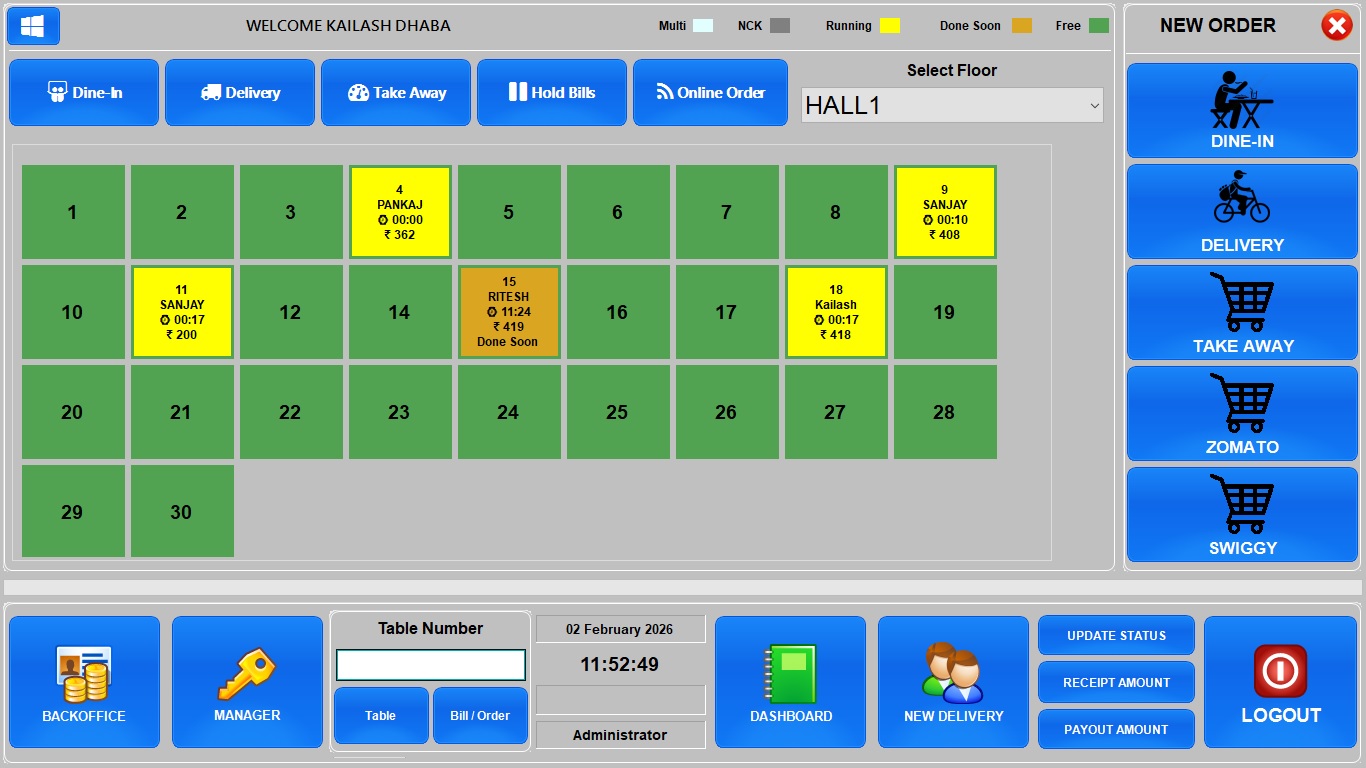
Step 2: Click the Add New Menu Item button.
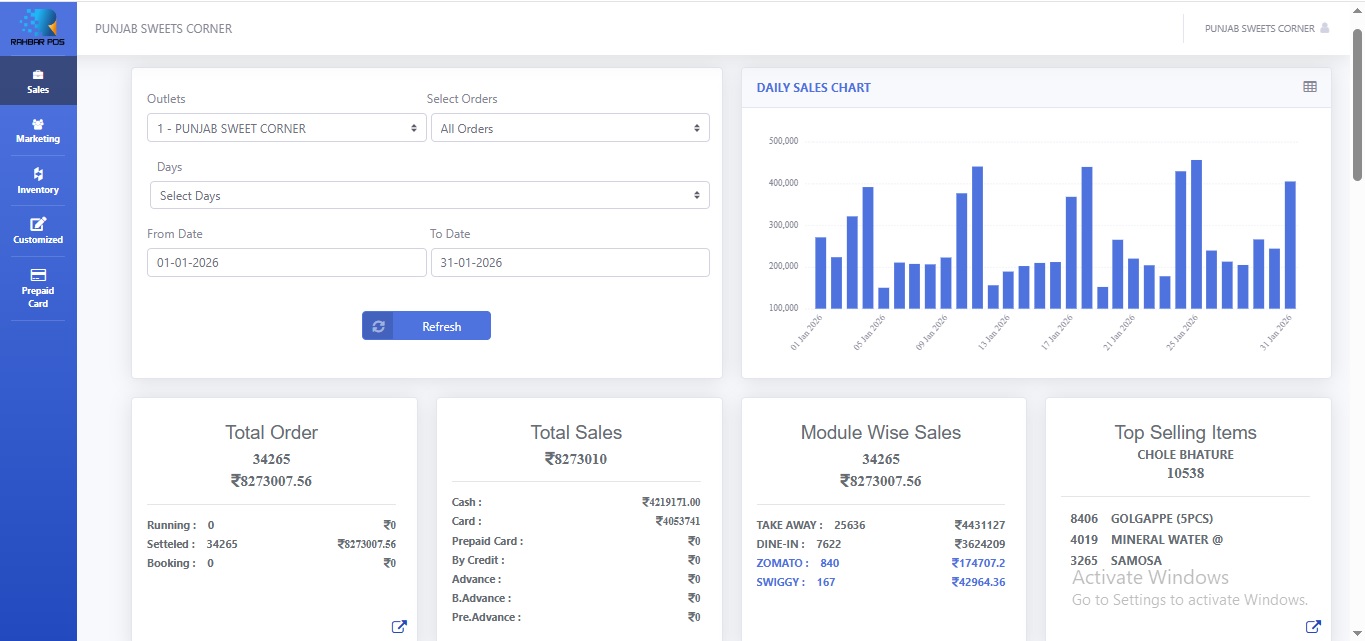
Step 3: You’ll notice the Item Type selected by default is Regular Item.
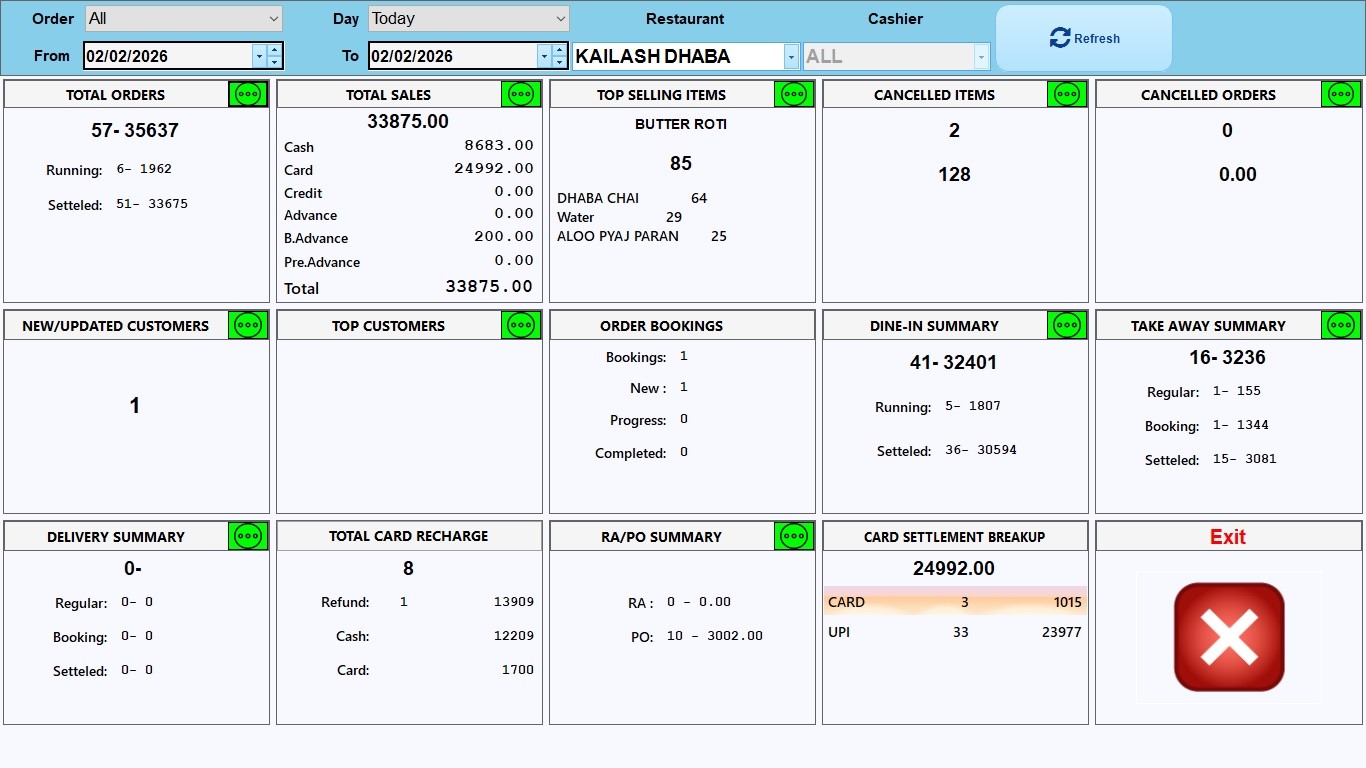
Step 4: Enter the name, default price, and select the category of your menu item. You can also add a description and image. Click here for the recommended image specifications.
Step 5: Once done, click Save.
Step 6: Finally, click the Refresh POS Menu Items button.
Did you find this article helpful?
3 out of 4 people found this article helpful